Connect CompanyCam to Mail the Block to automatically send direct mail campaigns using your project photos and customer information. Turn completed jobs into opportunities to reach nearby homeowners or use your existing customer list to generate repeat business.
Need help getting started? If you’re not technical, don’t have time to configure the integration or want help developing your direct mail strategy, schedule a strategy and setup call. You’ll speak directly with the owner of Mail the Block, who can help you get everything set up.
What You Can Do with the CompanyCam Integration
There are two primary ways to use CompanyCam with Mail the Block.
1. Automatically Send Nearest Neighbor Postcards
Turn every completed job into an opportunity to generate more business in the surrounding neighborhood.
When you tag a project photo in CompanyCam, Mail the Block can automatically send postcards to the nearest neighbors around that jobsite. The postcards can feature the actual project photo, which is particularly effective for exterior projects such as landscaping, roofing and painting. For interior projects, we recommend using a standard postcard design without swapping out the project photo.
- Automatic campaigns: Simply tag a photo in CompanyCam to trigger a postcard campaign.
- Target nearby homeowners: Send postcards to the 30 nearest neighbors by default, excluding the jobsite itself. You can customize the number of neighbors.
- Personalized postcards: Each postcard uses your project photo and references the street where the work was completed.
- Custom designs: Your postcards are professionally designed for your business and branding.
You can see examples of these campaigns on our postcard examples page.
2. Send Direct Mail to Your Existing Customers
Import your CompanyCam projects into Mail the Block to send postcards or handwritten cards to your existing customers.
This is a great way to stay top of mind, encourage repeat business and generate referrals.
For example, a lawn fertilization company could send postcards to past customers in March reminding them to schedule their spring service. They could then schedule another postcard to the same customers 45 days later as a follow-up reminder.
You can import your projects one time or enable automatic syncing to keep your customer list updated.
Step 1: Create Your Mail the Block Account
Before connecting CompanyCam, you’ll need a Mail the Block account.
- Visit send.mailtheblock.com/signup.
- Select the Platform Plan, which is selected by default.
- Complete the signup process.
- Schedule your onboarding call.
During onboarding, we’ll create a custom postcard design for your business. You can request as many revisions as needed to make sure you’re happy with the design.
Once your design is approved, we’ll build it in Mail the Block so it’s ready to use with your CompanyCam integration.
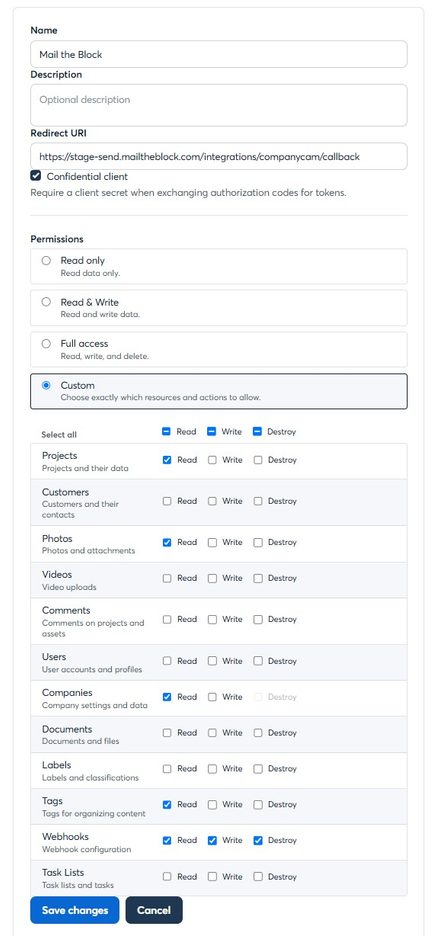
Step 2: Create the Mail the Block Application in CompanyCam
Log into CompanyCam using an administrator account.
- Navigate to Integrations → Applications.
- Click New Application.
- Enter the following information:
| Field | Value |
|---|---|
| Name | Mail the Block |
| Description | Leave blank |
| Redirect URL | https://send.mailtheblock.com/integrations/companycam/callback |
| Confidential Client | Leave checked |
| Permissions | Select Custom |
Under Custom Permissions, enable the following:
| Resource | Permissions |
|---|---|
| Projects | Read |
| Photos | Read |
| Companies | Read |
| Tags | Read |
| Webhooks | Read, Write, Destroy |
Click Create Application.
CompanyCam will generate a Client ID and Client Secret. You’ll need both of these to connect your CompanyCam account to Mail the Block.
Step 3: Connect CompanyCam to Mail the Block
- Log into your Mail the Block account.
- Navigate to Settings → Integrations.
- Find CompanyCam and click Set Up.
- In CompanyCam, navigate to Integrations → Applications → Mail the Block.
- Copy your Client ID and Client Secret from CompanyCam into the corresponding fields in Mail the Block.
- Click Save.
- Click Connect CompanyCam and authorize the connection.
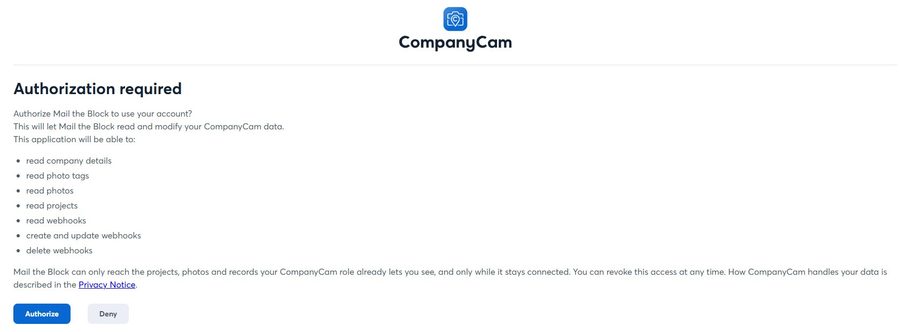
Your CompanyCam account should now be connected to Mail the Block.
Next, follow the instructions below based on how you want to use the integration.
Option 1: Enable Automatic Nearest Neighbor Campaigns
You can automatically trigger a postcard campaign whenever you tag a project photo in CompanyCam.
Step 1: Create or Choose a CompanyCam Tag
First, decide which CompanyCam tag you want to use to trigger your postcard campaigns.
- Log into CompanyCam.
- Navigate to Resources → Tags.
- If you already have a tag you’d like to use, take note of its name.
- Otherwise, click Create Tag, enter a name (such as “Send Postcards”) and click Add Tag.
Step 2: Select Your Trigger Tag in Mail the Block
- Log into Mail the Block.
- Navigate to Settings → Integrations.
- Click Manage under CompanyCam.
- Find the dropdown containing your CompanyCam tags.
- Select the tag you want to use to trigger postcard campaigns.
- Click Change Tag.
If you just created a new tag in CompanyCam and don’t see it listed, refresh the page.
Step 3: Start Sending Postcards
Your integration is now configured.
Whenever you apply your selected tag to a project photo in CompanyCam, Mail the Block will receive the jobsite address and photo and generate a nearest neighbor postcard campaign.
The postcards will feature your project photo and reference the street where the work was completed, helping nearby homeowners see the work you’ve done in their neighborhood.
Option 2: Import Your CompanyCam Projects to Mail Existing Customers
You can also use CompanyCam to build a mailing list of your existing customers.
This is useful for:
- Reminding customers to schedule recurring services.
- Promoting seasonal services.
- Encouraging repeat business.
- Requesting referrals.
- Staying top of mind with past customers.
Step 1: Configure Project Importing
- Log into Mail the Block.
- Navigate to Settings → Integrations.
- Click Set Up under CompanyCam.
- Choose whether to perform a one-time import or enable automatic project syncing.
Step 2: Send Direct Mail to Your Customers
Once imported, your CompanyCam projects will appear as contacts under the Contacts page in Mail the Block.
You can then navigate to Mail My Contacts to create campaigns using those addresses.
Send postcards or handwritten cards to your customers, including scheduled follow-up campaigns to help generate repeat business.
Need Help Setting Up Your CompanyCam Integration?
Whether you need help connecting your account, configuring automatic postcard campaigns or developing a direct mail strategy for your business, we’re here to help.
Schedule a Strategy and Setup Call to speak directly with the owner of Mail the Block.